Billing that keeps the line moving
Start a dine-in, takeaway or delivery order and build the bill from a visual menu. Apply coupons, add notes, split a payment or let the guest pay later.
Cash · UPI · Card · Wallet · Split payments
See details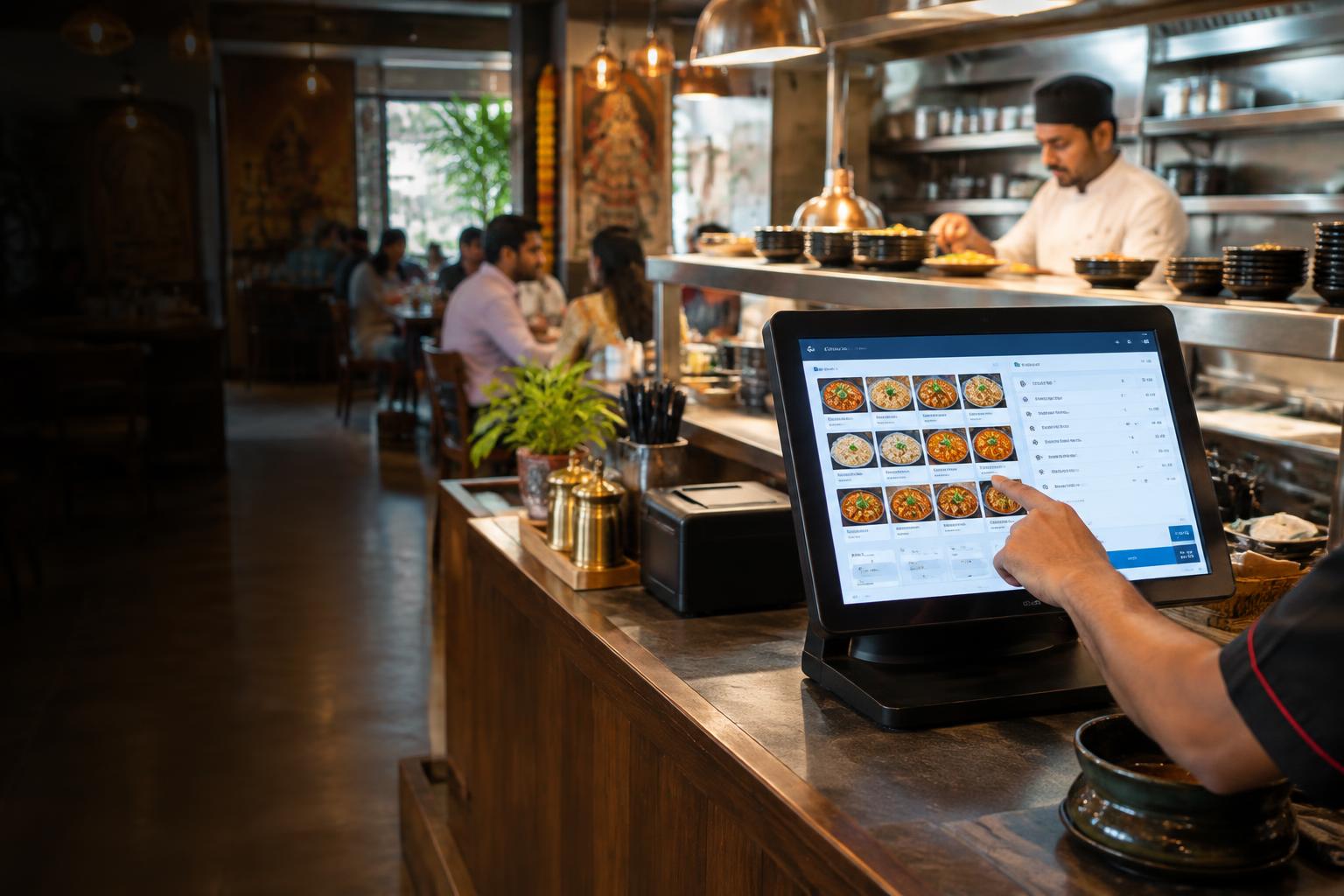
OrdrPro POS · Made for restaurants
From dine-in and delivery orders to kitchen tickets, payments, stock deductions and end-of-day reports—keep the whole restaurant in step.
A service, start to finish
The cashier starts a bill and sends the order. The kitchen sees what to make and marks it ready. The team serves, collects payment and closes the shift. Managers can then see what sold, what was spent and what stock is left.
Dine-in, takeaway or delivery, with notes and live totals.
Ticket timers, cooking stages and a ready queue.
Flexible payment and a counted cash drawer.
Sales, tax, stock and shift reports by outlet.
What your team can do
Start a dine-in, takeaway or delivery order and build the bill from a visual menu. Apply coupons, add notes, split a payment or let the guest pay later.
Cash · UPI · Card · Wallet · Split payments
See detailsSend the order to the kitchen as a ticket with item instructions. Staff can see how long it has waited, mark it cooking and move it to ready for pickup or service.
KOT printing · Priority flags · Ready board
See detailsFind active and completed orders with their invoice, table, customer and payment details. Reprint a bill or handle an item void without losing the order history.
Active orders · Reprints · Voids
See detailsOpen a shift with a cash amount, record cash in or out with a reason, and compare expected cash with the closing count before handing over.
Shift sales · Cash movements · Closing count
See detailsKeep menu items and recipes together, record stock inward and wastage, and see low-stock alerts. Ingredient costs can flow into COGS and profit reports.
Recipes · Reorder levels · Inventory reports
See detailsReview today's orders and revenue, then search and sort sales, GST, shift and inventory reports by outlet and date. Export to Excel/CSV or PDF.
Sales · GST · P&L · Item-wise consumption
See detailsOffer delivery alongside dine-in and takeaway. Set delivery zones, share QRs for each order type and automatically print takeaway invoices and kitchen tickets.
Delivery areas · QR ordering · Auto-print
See detailsUse a prepaid messaging credit balance for WhatsApp notifications. Messages stop when credit runs out, and you can top up when needed.
Prepaid credit · Automatic pause · Top-ups
See detailsYes. Cashiers can choose dine-in, takeaway or delivery while billing. Managers can configure delivery zones, and QR ordering is available for tables, takeaway and delivery.
Orders appear as kitchen tickets with item notes, an elapsed timer and a priority flag when needed. The team can print KOTs, move tickets from new to cooking, and mark food ready for service.
Yes. Guests can see their order status on screen. The desktop app also plays a bell when a new order comes in, and takeaway orders can automatically print an invoice and KOT when submitted.
Yes. The cashier can accept cash, UPI, card or wallet payments, and split one bill across two or more payment modes. Bill-later is also available when an order needs to be sent before settlement.
Yes. Managers can edit prices and item details, activate or deactivate dishes, import a menu in bulk, and map recipes to ingredients. Inventory tools cover inward stock, wastage, adjustments and reorder levels.
WhatsApp notifications use a prepaid messaging credit balance provided with the account. They stop automatically when credit runs out; more credit can be purchased from the subscription area.
The annual subscription is ₹10,000 per outlet plus 18% GST (₹1,800), for a total of ₹11,800 per outlet per year. Request a demo to discuss your outlet setup.
OrdrPro Loyalty is a separate tool that can be connected to an outlet. We can show you how the POS and loyalty workflows fit together during a demo.
See OrdrPro POS in action
Walk through a dine-in bill, kitchen ticket, payment and shift close with our team. Tell us how many outlets you run and what your staff needs to handle each day.
₹10,000 + 18% GST per outlet / year
Total ₹11,800 per outlet, per year. View POS pricing details
Share your name, business and phone number. We'll get in touch to arrange a walkthrough.